ggplot2 Chart Gallery

A showcase of static chart types with CPAL styling

Introduction

This gallery showcases various static chart types using ggplot2 with CPAL styling via cpaltemplates. Each example demonstrates proper use of themes, color palettes, and formatting.

Looking for Interactive Charts?

For interactive visualizations using highcharter, see the Highcharter Chart Gallery.

Code Visibility

Click “Show code” above each chart to see the full implementation.


Basic Charts

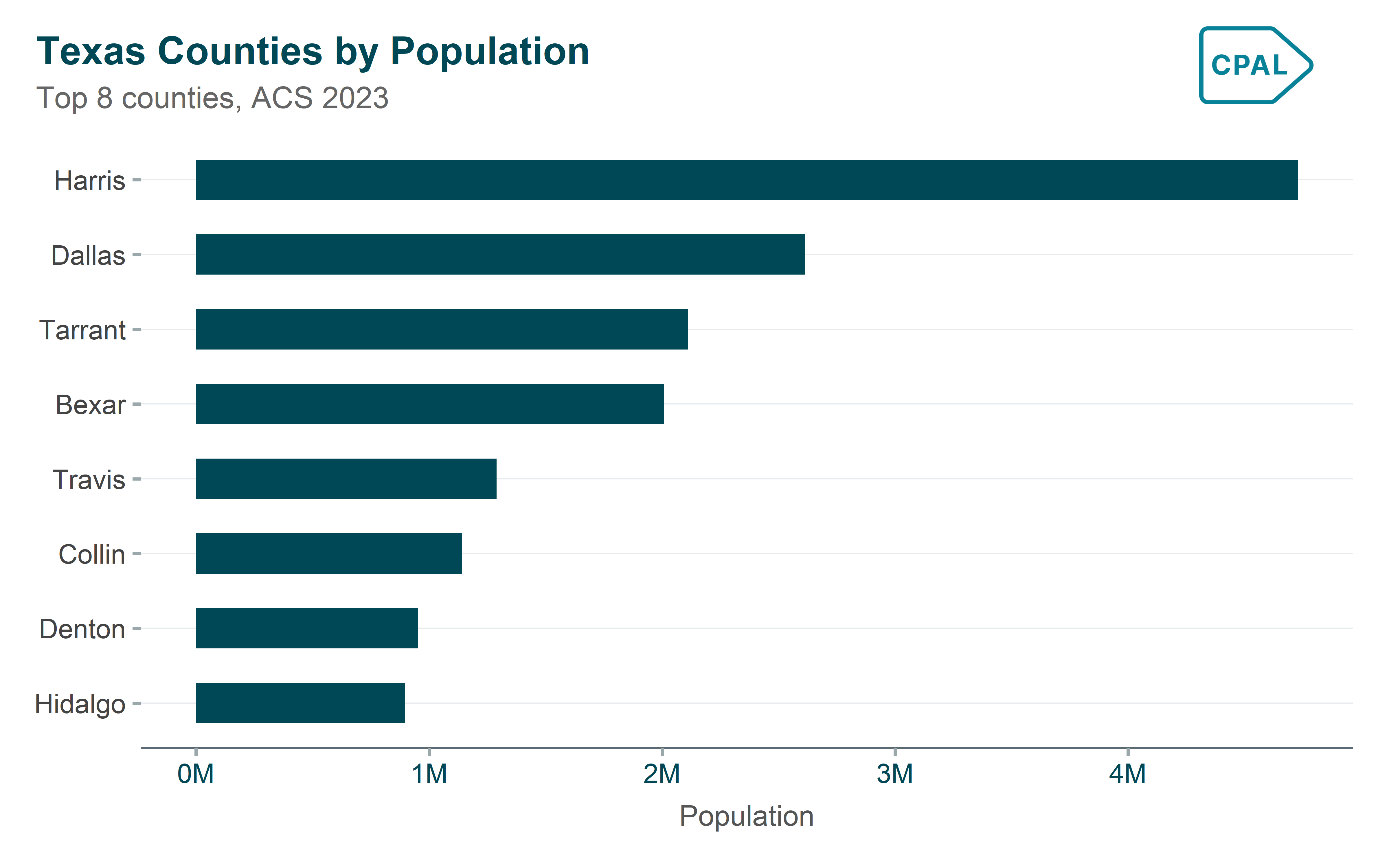
Bar Chart (Horizontal)

When to use: Best for comparing values across categories, especially when category labels are long or when you have many categories.

Show code
p <- tx_counties |>
  arrange(desc(total_pop)) |>
  head(8) |>
  ggplot(aes(x = reorder(county, total_pop), y = total_pop)) +
  geom_col(fill = palette_cpal_main[1], width = 0.54) +
  coord_flip() +
  scale_y_continuous(labels = scales::label_number(scale = 1e-6, suffix = "M")) +
  labs(
    title = "Texas Counties by Population",
    subtitle = "Top 8 counties, ACS 2023",
    x = NULL,
    y = "Population"
  ) +
  theme_cpal()

add_cpal_logo(p)

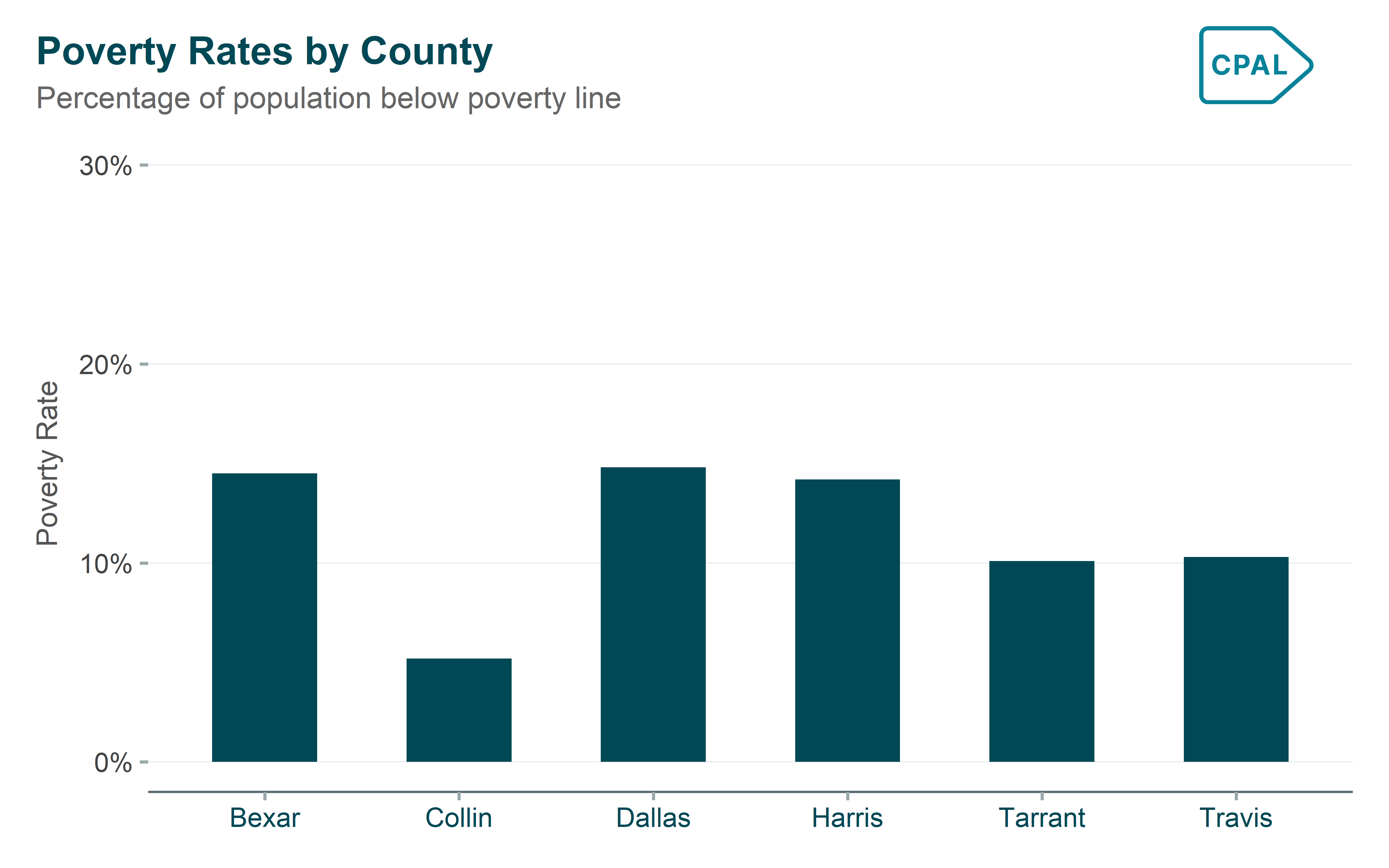
Column Chart (Vertical)

When to use: Ideal for comparing values across a small number of categories (typically 3-8).

Show code
p <- tx_counties |>
  head(6) |>
  ggplot(aes(x = county, y = poverty_rate)) +
  geom_col(fill = palette_cpal_main[1], width = 0.54) +
  scale_y_continuous(labels = scales::label_percent(scale = 1), limits = c(0, 30)) +
  labs(
    title = "Poverty Rates by County",
    subtitle = "Percentage of population below poverty line",
    x = NULL,
    y = "Poverty Rate"
  ) +
  theme_cpal()

add_cpal_logo(p)

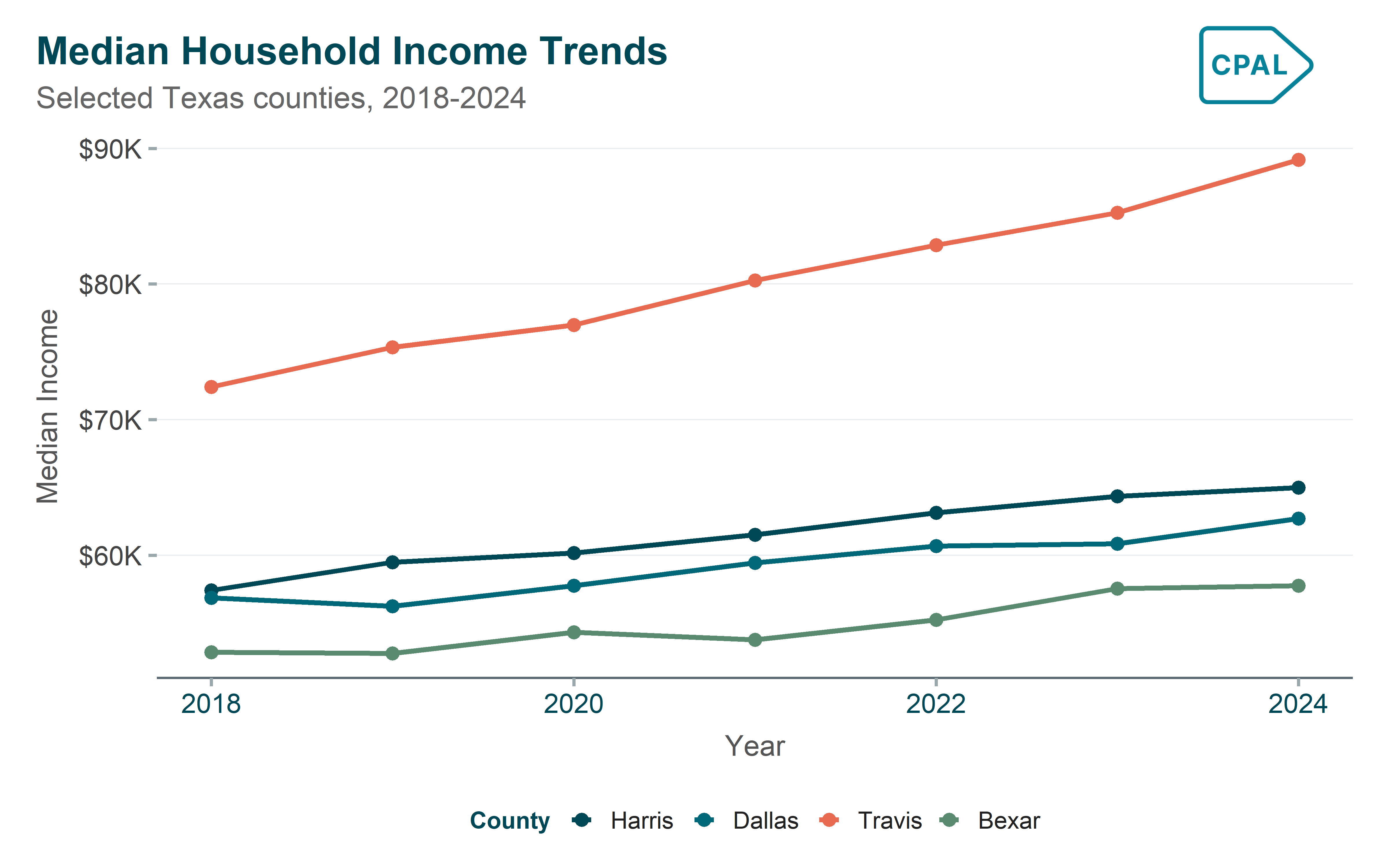
Line Chart

When to use: Best for showing trends over time or continuous change across an ordered sequence.

Show code
p <- tx_time |>
  ggplot(aes(x = year, y = median_hh_income, color = county)) +
  geom_line(linewidth = 1) +
  geom_point(size = 2) +
  scale_color_cpal_d() +
  scale_y_continuous(labels = scales::label_dollar(scale = 1e-3, suffix = "K")) +
  labs(
    title = "Median Household Income Trends",
    subtitle = "Selected Texas counties, 2018-2024",
    x = "Year",
    y = "Median Income",
    color = "County"
  ) +
  theme_cpal()

add_cpal_logo(p)

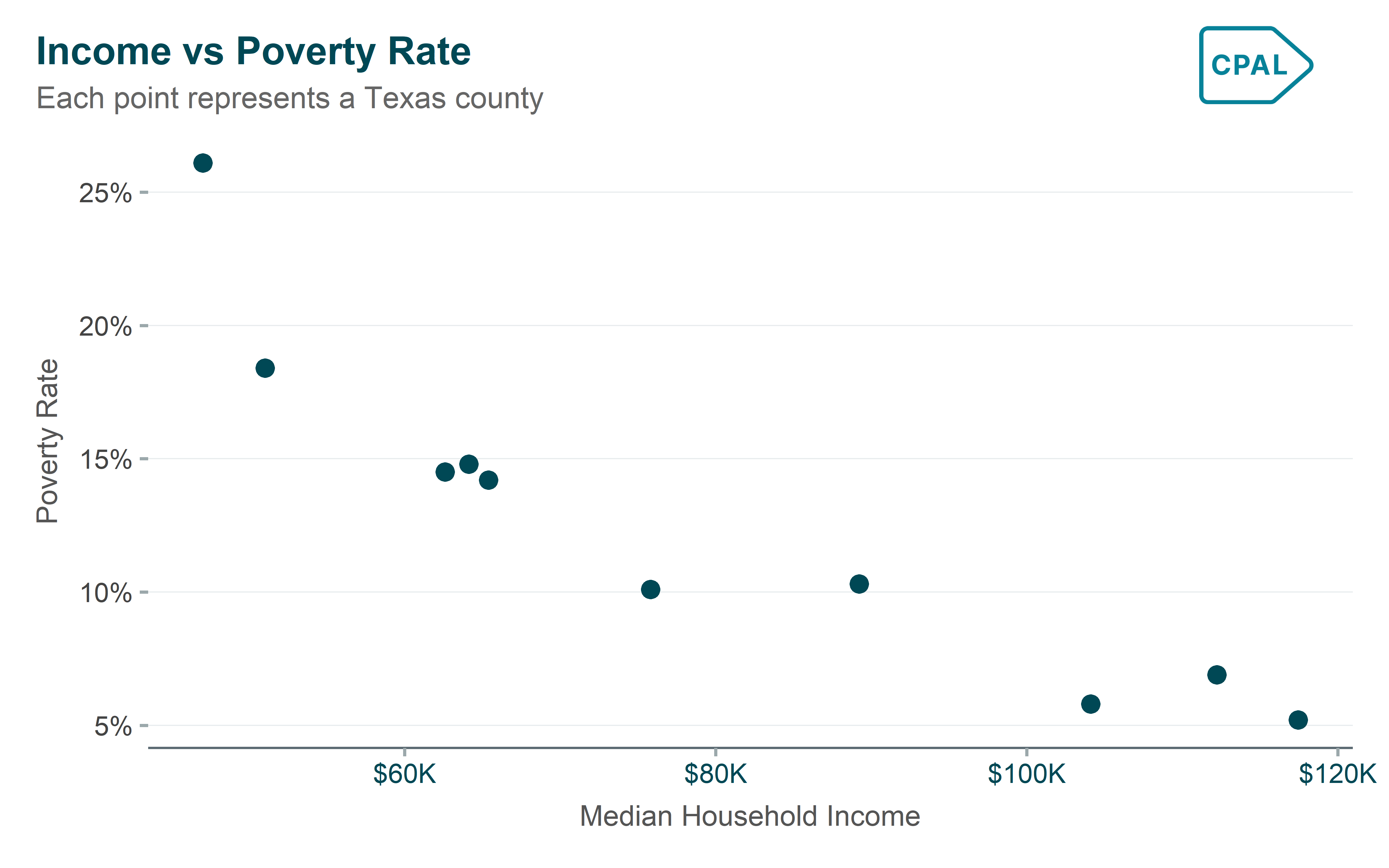
Scatter Plot

When to use: Use to explore the relationship between two continuous variables.

Show code
p <- tx_counties |>
  ggplot(aes(x = median_hh_income, y = poverty_rate)) +
  geom_point(size = 3, color = palette_cpal_main[1]) +
  scale_x_continuous(labels = scales::label_dollar(scale = 1e-3, suffix = "K")) +
  scale_y_continuous(labels = scales::label_percent(scale = 1)) +
  labs(
    title = "Income vs Poverty Rate",
    subtitle = "Each point represents a Texas county",
    x = "Median Household Income",
    y = "Poverty Rate"
  ) +
  theme_cpal()

add_cpal_logo(p)

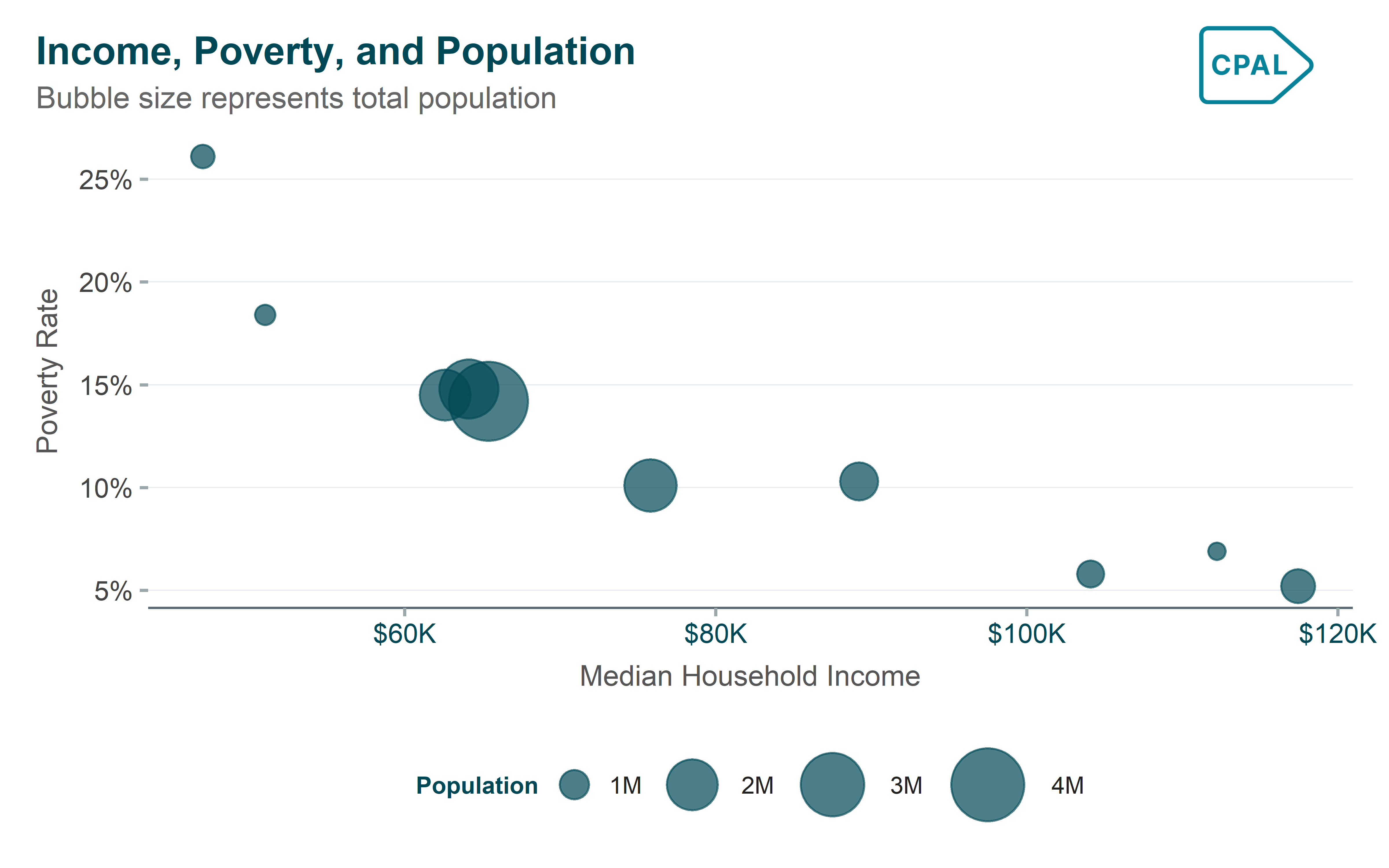
Bubble Plot

When to use: Use when you need to show relationships between three variables simultaneously.

Show code
p <- tx_counties |>
  ggplot(aes(x = median_hh_income, y = poverty_rate, size = total_pop)) +
  geom_point(alpha = 0.7, color = palette_cpal_main[1]) +
  scale_x_continuous(labels = scales::label_dollar(scale = 1e-3, suffix = "K")) +
  scale_y_continuous(labels = scales::label_percent(scale = 1)) +
  scale_size_continuous(
    range = c(3, 15),
    labels = scales::label_number(scale = 1e-6, suffix = "M")
  ) +
  labs(
    title = "Income, Poverty, and Population",
    subtitle = "Bubble size represents total population",
    x = "Median Household Income",
    y = "Poverty Rate",
    size = "Population"
  ) +
  theme_cpal()

add_cpal_logo(p)


Grouped & Stacked Charts

Grouped Bar Chart

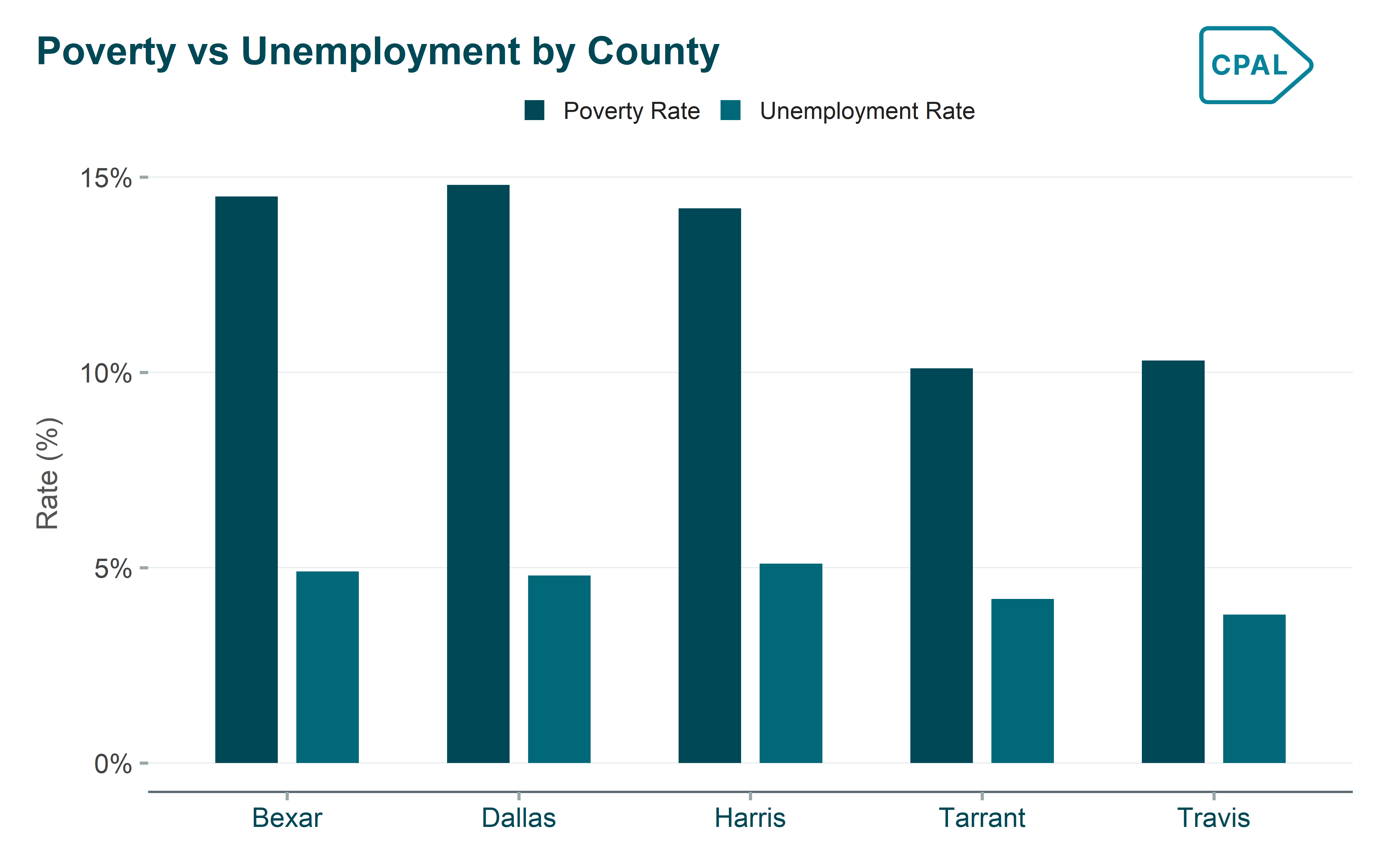
When to use: Use when comparing two or more related metrics across the same categories.

Show code
p <- tx_counties |>
  head(5) |>
  select(county, poverty_rate, unemployment_rate) |>
  pivot_longer(cols = c(poverty_rate, unemployment_rate),
               names_to = "metric",
               values_to = "rate") |>
  mutate(metric = case_when(
    metric == "poverty_rate" ~ "Poverty Rate",
    metric == "unemployment_rate" ~ "Unemployment Rate"
  )) |>
  ggplot(aes(x = county, y = rate, fill = metric)) +
  geom_col(position = position_dodge(width = 0.7), width = 0.54) +
  scale_fill_cpal_d() +
  scale_y_continuous(labels = scales::label_percent(scale = 1)) +
  labs(
    title = "Poverty vs Unemployment by County",
    x = NULL,
    y = "Rate (%)",
    fill = NULL
  ) +
  theme_cpal() +
  theme(legend.position = "top")

add_cpal_logo(p)

Stacked Bar Chart

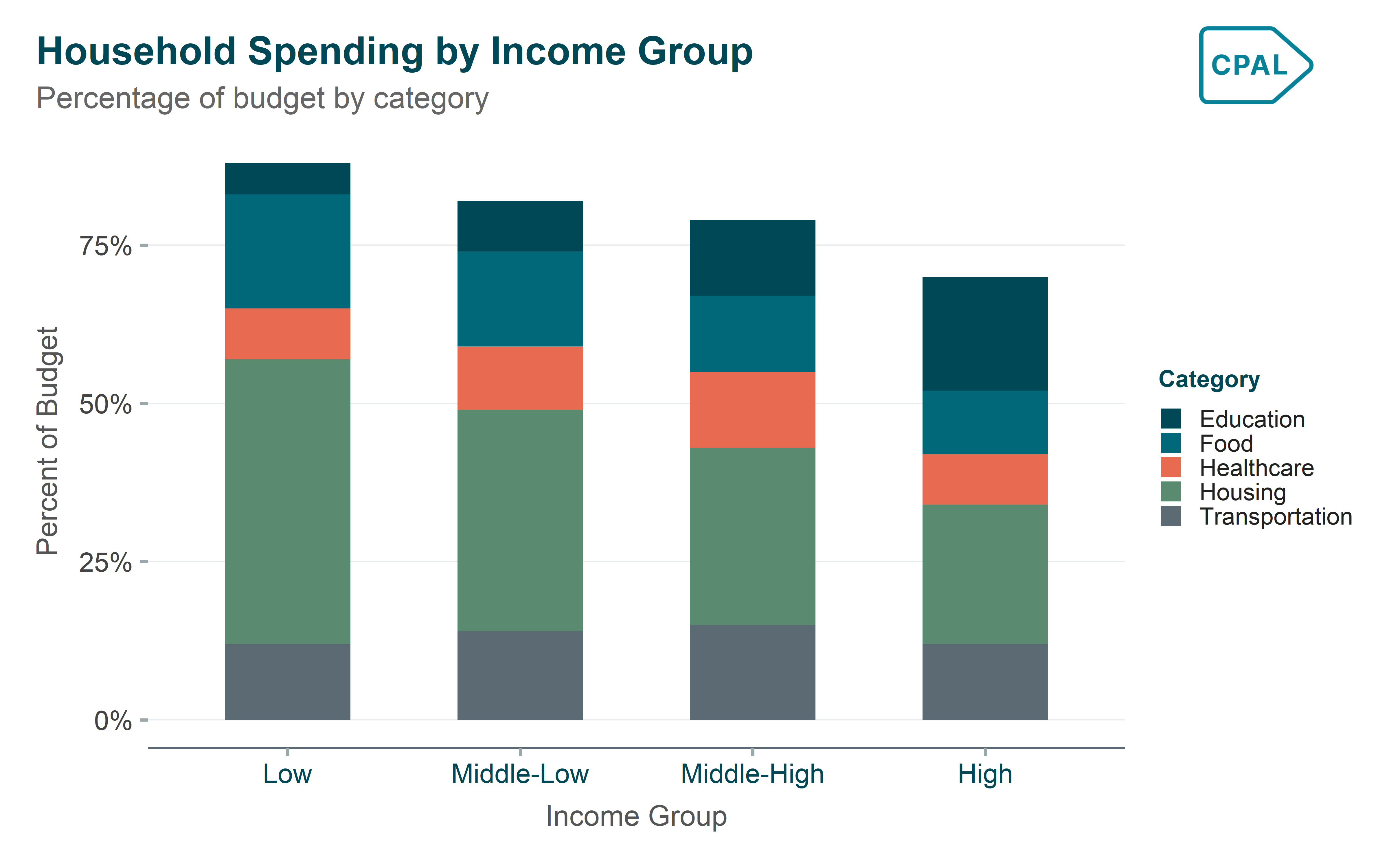
When to use: Use when showing how parts contribute to a total across categories.

Show code
p <- spending_data |>
  mutate(income_group = factor(income_group,
                                levels = c("Low", "Middle-Low", "Middle-High", "High"))) |>
  ggplot(aes(x = income_group, y = pct_spending, fill = category)) +
  geom_col(width = 0.54) +
  scale_fill_cpal_d() +
  scale_y_continuous(labels = scales::label_percent(scale = 1)) +
  labs(
    title = "Household Spending by Income Group",
    subtitle = "Percentage of budget by category",
    x = "Income Group",
    y = "Percent of Budget",
    fill = "Category"
  ) +
  theme_cpal() +
  theme(legend.position = "right")

add_cpal_logo(p)

100% Stacked Bar Chart

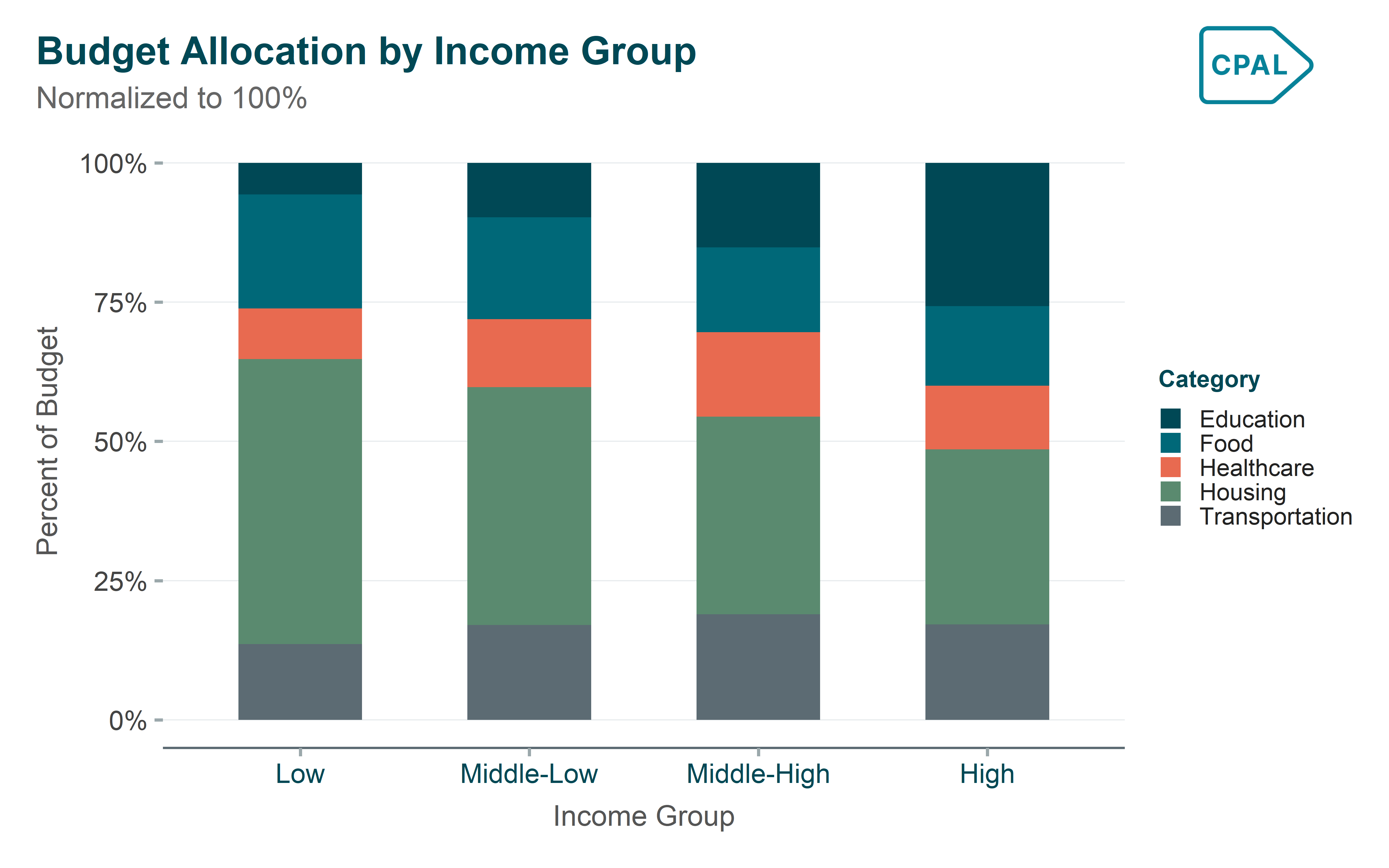
When to use: Use when comparing the relative composition across categories, regardless of total size.

Show code
p <- spending_data |>
  mutate(income_group = factor(income_group,
                                levels = c("Low", "Middle-Low", "Middle-High", "High"))) |>
  ggplot(aes(x = income_group, y = pct_spending, fill = category)) +
  geom_col(position = "fill", width = 0.54) +
  scale_fill_cpal_d() +
  scale_y_continuous(labels = scales::label_percent()) +
  labs(
    title = "Budget Allocation by Income Group",
    subtitle = "Normalized to 100%",
    x = "Income Group",
    y = "Percent of Budget",
    fill = "Category"
  ) +
  theme_cpal() +
  theme(legend.position = "right")

add_cpal_logo(p)


Area Charts

Basic Area Chart

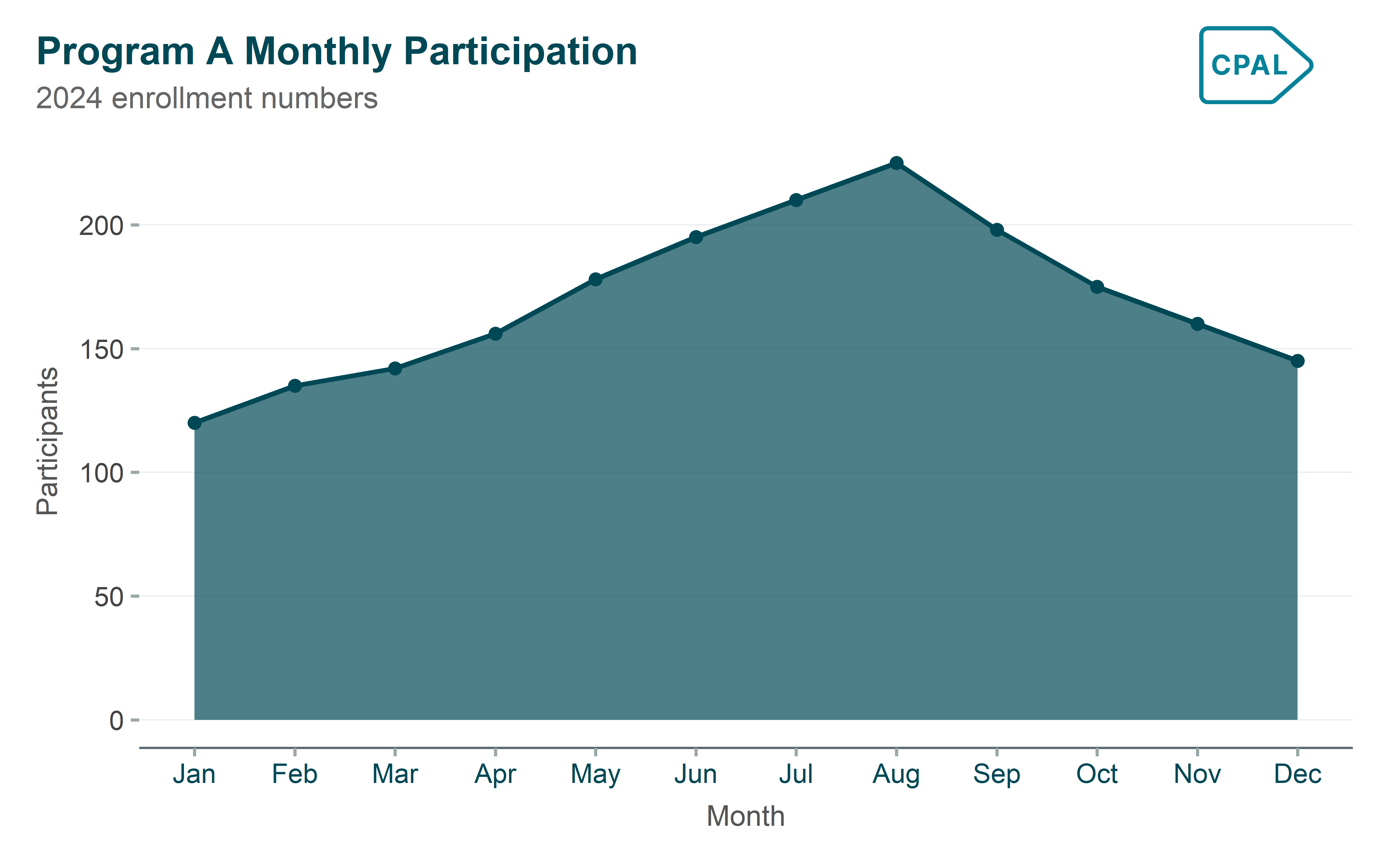
When to use: Use to emphasize the magnitude or volume of values over time.

Show code
p <- monthly_data |>
  filter(program == "Program A") |>
  ggplot(aes(x = month_num, y = participants)) +
  geom_area(fill = palette_cpal_main[1], alpha = 0.7) +
  geom_line(color = palette_cpal_main[1], linewidth = 1) +
  geom_point(color = palette_cpal_main[1], size = 2) +
  scale_x_continuous(breaks = 1:12, labels = month.abb) +
  labs(
    title = "Program A Monthly Participation",
    subtitle = "2024 enrollment numbers",
    x = "Month",
    y = "Participants"
  ) +
  theme_cpal()

add_cpal_logo(p)

Stacked Area Chart

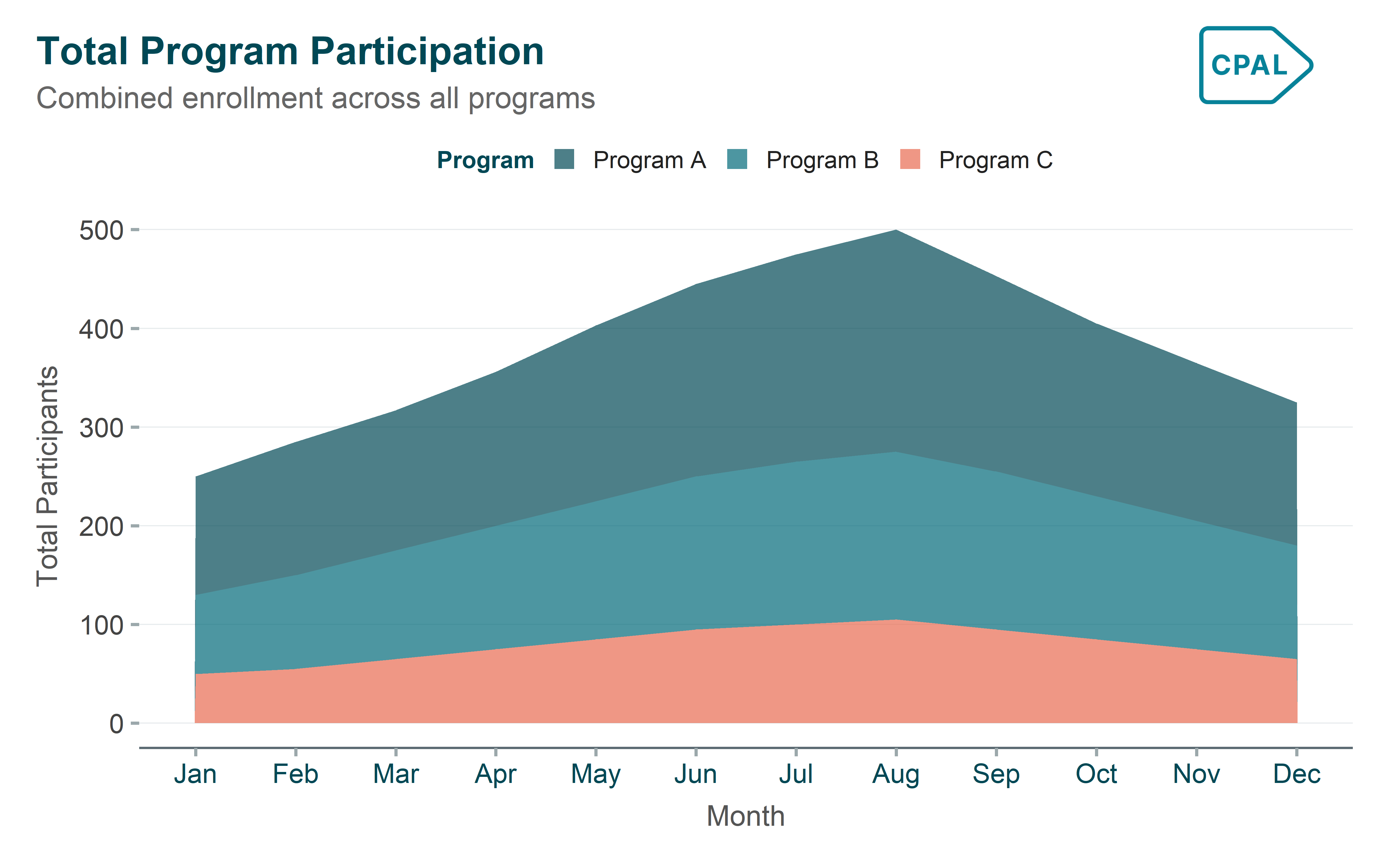
When to use: Use when showing how multiple components contribute to a total over time.

Show code
p <- monthly_data |>
  ggplot(aes(x = month_num, y = participants, fill = program)) +
  geom_area(alpha = 0.7) +
  scale_fill_cpal_d() +
  scale_x_continuous(breaks = 1:12, labels = month.abb) +
  labs(
    title = "Total Program Participation",
    subtitle = "Combined enrollment across all programs",
    x = "Month",
    y = "Total Participants",
    fill = "Program"
  ) +
  theme_cpal() +
  theme(legend.position = "top")

add_cpal_logo(p)


Distribution Charts

Histogram

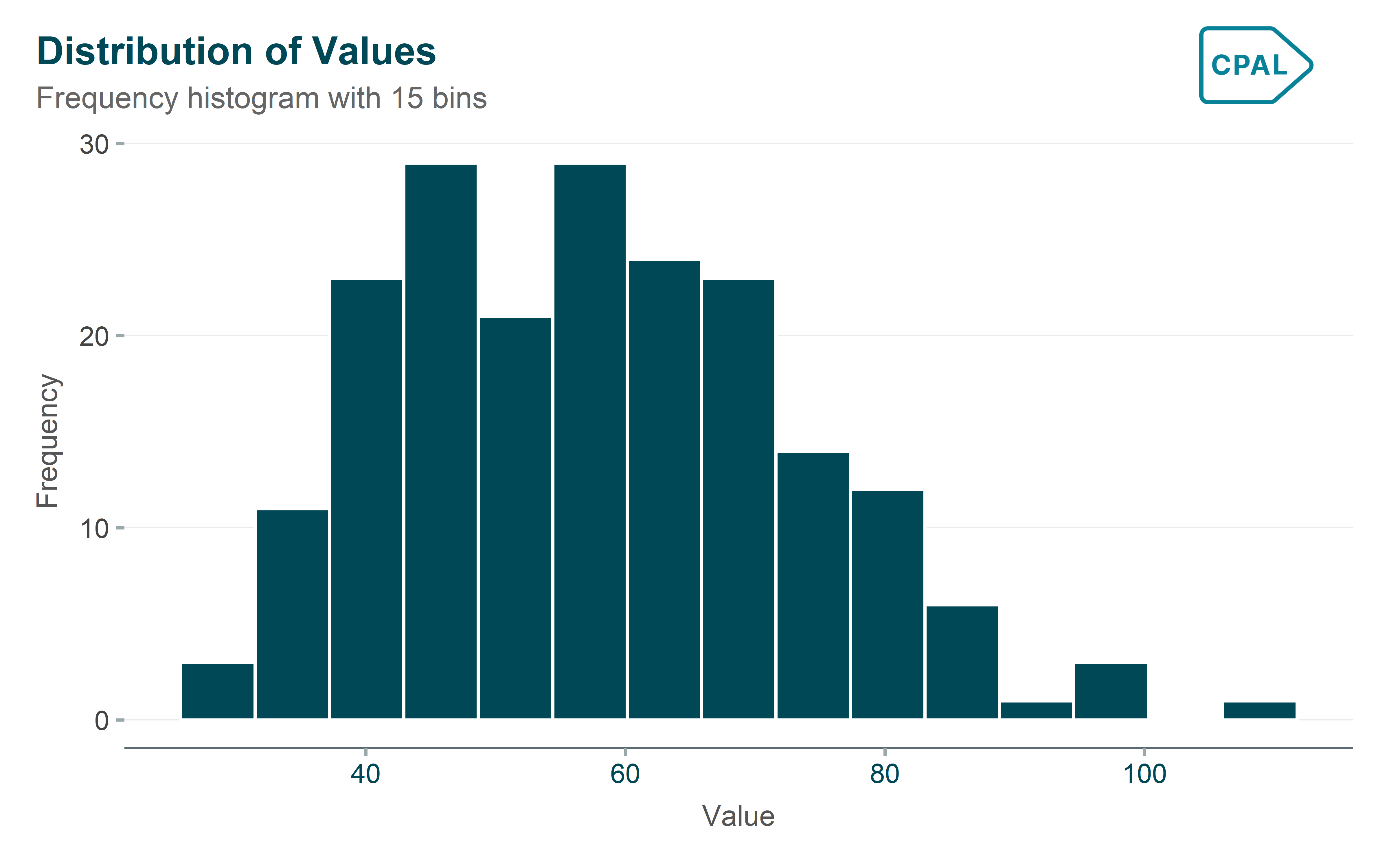
When to use: Use to understand the distribution of a single continuous variable.

Show code
p <- distribution_data |>
  ggplot(aes(x = value)) +
  geom_histogram(bins = 15, fill = palette_cpal_main[1], color = "white") +
  labs(
    title = "Distribution of Values",
    subtitle = "Frequency histogram with 15 bins",
    x = "Value",
    y = "Frequency"
  ) +
  theme_cpal()

add_cpal_logo(p)

Density Plot

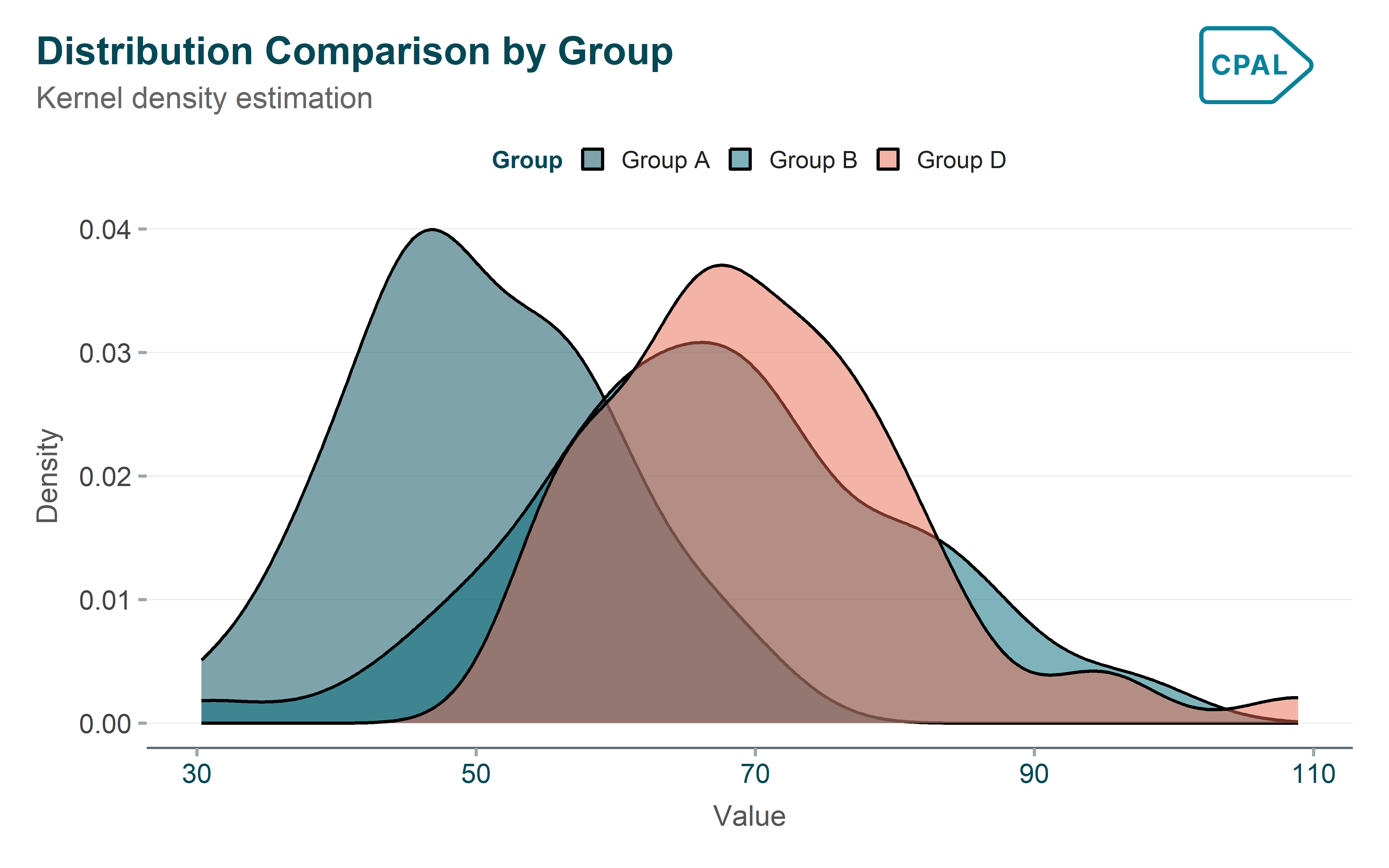
When to use: Use to visualize the probability distribution of continuous data.

Show code
p <- distribution_data |>
  filter(group %in% c("Group A", "Group B", "Group D")) |>
  ggplot(aes(x = value, fill = group)) +
  geom_density(alpha = 0.5) +
  scale_fill_cpal_d() +
  labs(
    title = "Distribution Comparison by Group",
    subtitle = "Kernel density estimation",
    x = "Value",
    y = "Density",
    fill = "Group"
  ) +
  theme_cpal() +
  theme(legend.position = "top")

add_cpal_logo(p)

Boxplot

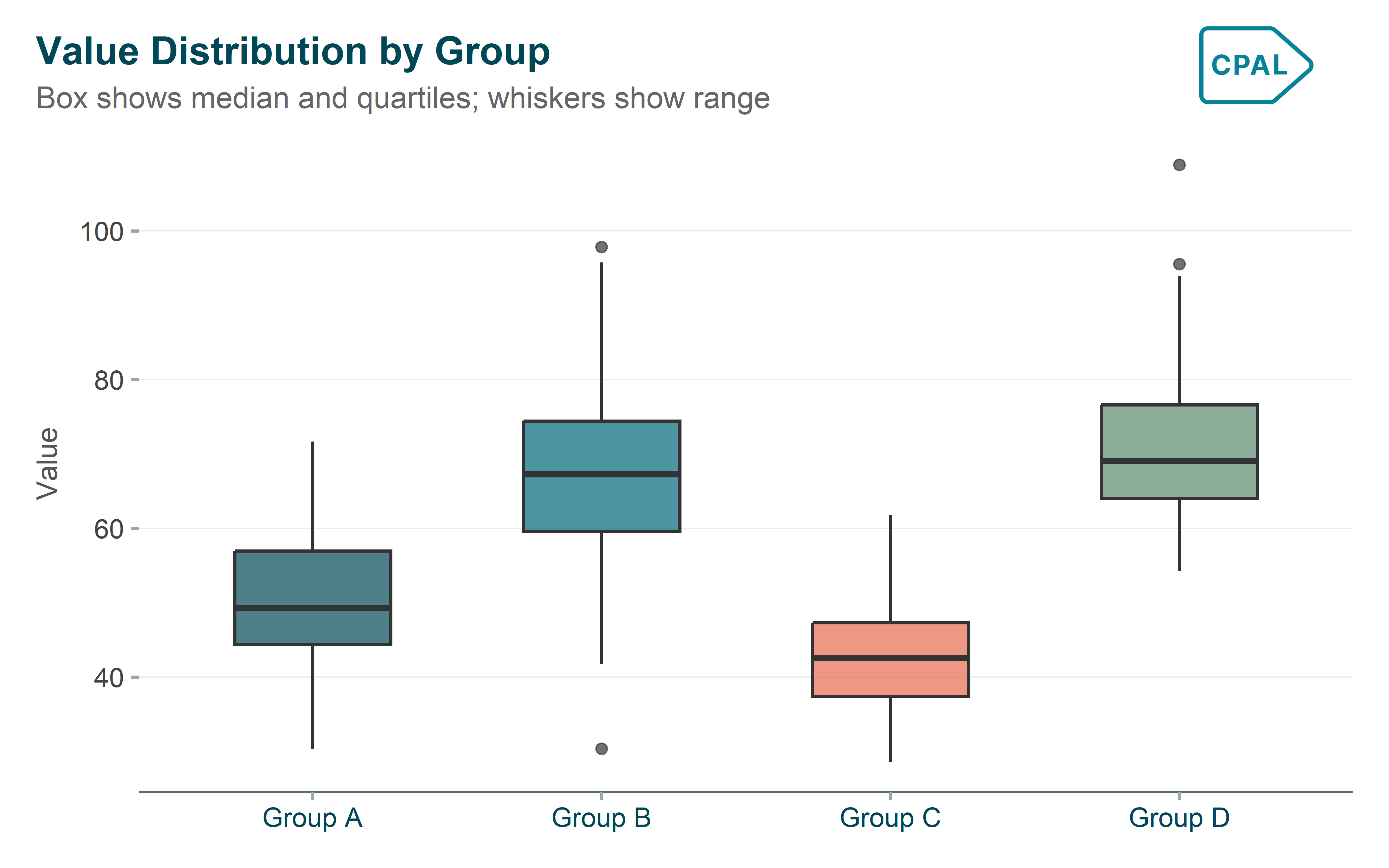
When to use: Use to compare distributions across groups in a compact form.

Show code
p <- distribution_data |>
  ggplot(aes(x = group, y = value, fill = group)) +
  geom_boxplot(alpha = 0.7, width = 0.54) +
  scale_fill_cpal_d() +
  labs(
    title = "Value Distribution by Group",
    subtitle = "Box shows median and quartiles; whiskers show range",
    x = NULL,
    y = "Value"
  ) +
  theme_cpal() +
  theme(legend.position = "none")

add_cpal_logo(p)


Heatmaps & Correlation

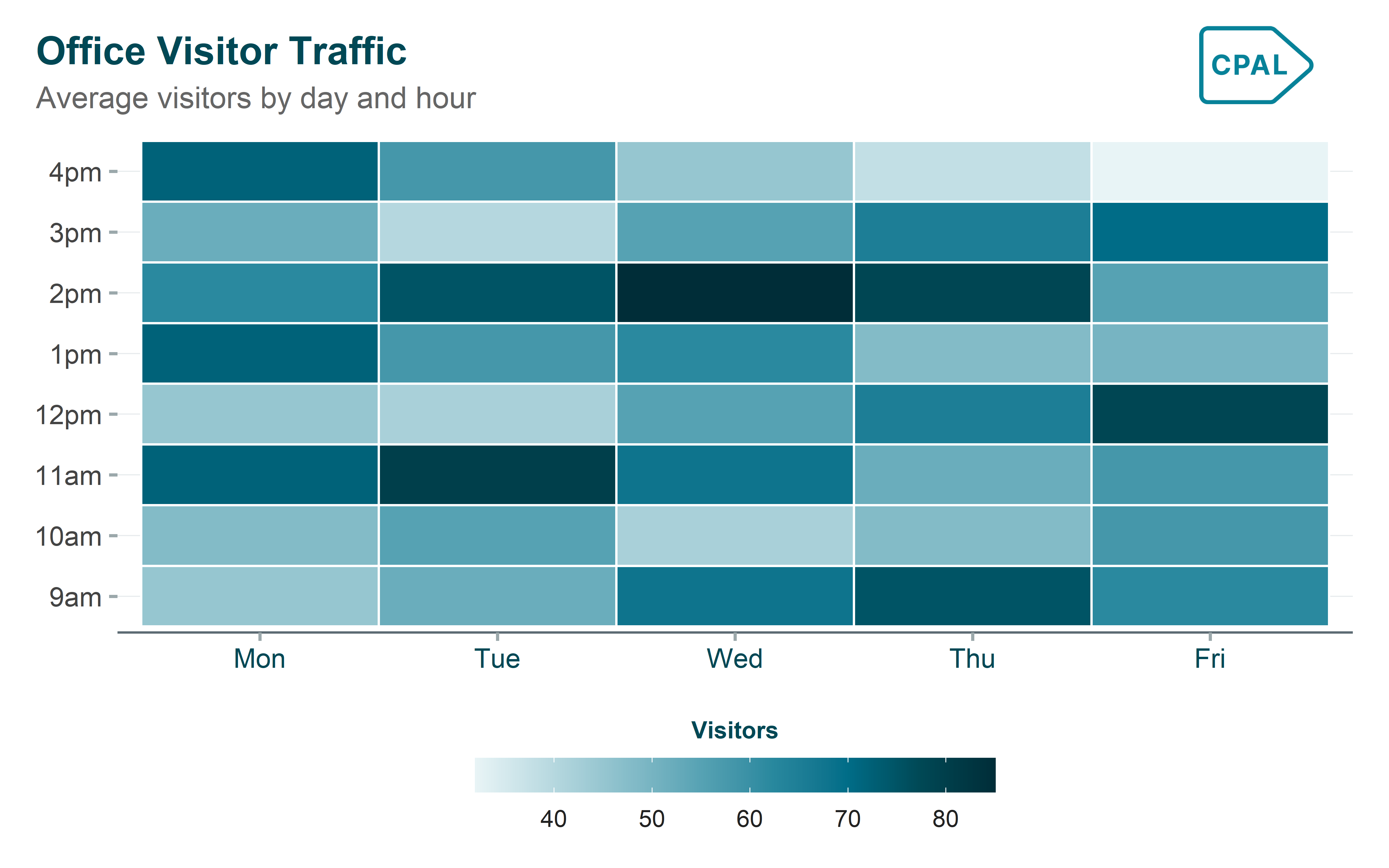
Heatmap

When to use: Use to display patterns in data across two categorical dimensions.
Show code
heatmap_data <- expand.grid(
  day = c("Mon", "Tue", "Wed", "Thu", "Fri"),
  hour = c("9am", "10am", "11am", "12pm", "1pm", "2pm", "3pm", "4pm")
) |>
  mutate(
    day = factor(day, levels = c("Mon", "Tue", "Wed", "Thu", "Fri")),
    hour = factor(hour, levels = c("9am", "10am", "11am", "12pm", "1pm", "2pm", "3pm", "4pm")),
    visitors = c(
      45, 52, 68, 75, 62, 48, 55, 42,  # Mon
      48, 58, 72, 80, 68, 52, 58, 45,  # Tue
      42, 55, 65, 78, 72, 58, 62, 48,  # Wed
      50, 62, 75, 85, 78, 55, 52, 40,  # Thu
      55, 65, 70, 72, 58, 45, 38, 32   # Fri
    )
  )

p <- heatmap_data |>
  ggplot(aes(x = day, y = hour, fill = visitors)) +
  geom_tile(color = "white", linewidth = 0.5) +
  scale_fill_cpal(
    palette = "midnight_seq_8",
    discrete = FALSE,
    guide = guide_colorbar(
      barwidth = 15,
      barheight = 1,
      title.position = "top",
      title.hjust = 0.5
    )
  ) +
  labs(
    title = "Office Visitor Traffic",
    subtitle = "Average visitors by day and hour",
    x = NULL,
    y = NULL,
    fill = "Visitors"
  ) +
  theme_cpal() +
  theme(
    axis.text.x = element_text(angle = 0),
    panel.grid = element_blank(),
    legend.position = "bottom"
  )

add_cpal_logo(p)

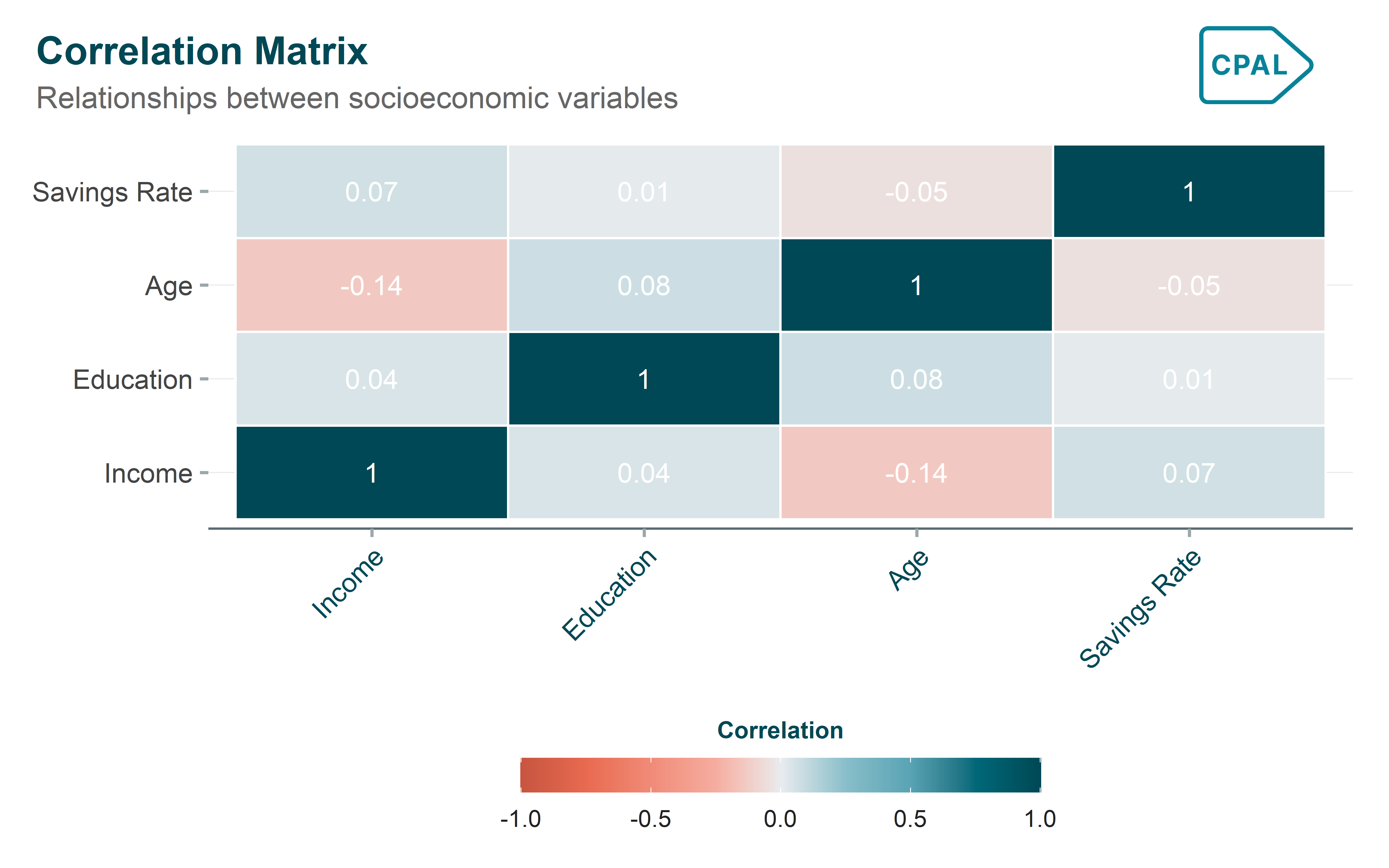
Correlation Matrix

When to use: Use to visualize the strength and direction of relationships between multiple numeric variables.

Show code
# Calculate correlation matrix
cor_matrix <- cor(correlation_data)

# Convert to long format
cor_long <- as.data.frame(as.table(cor_matrix)) |>
  rename(var1 = Var1, var2 = Var2, correlation = Freq)

# Better labels
label_map <- c(
  "income" = "Income",
  "education_years" = "Education",
  "age" = "Age",
  "savings_rate" = "Savings Rate"
)

p <- cor_long |>
  mutate(
    var1 = factor(var1, levels = names(label_map), labels = label_map),
    var2 = factor(var2, levels = names(label_map), labels = label_map)
  ) |>
  ggplot(aes(x = var1, y = var2, fill = correlation)) +
  geom_tile(color = "white", linewidth = 0.5) +
  geom_text(aes(label = round(correlation, 2)), color = "white", size = 4) +
  scale_fill_cpal(
    palette = "coral_midnight_9",
    discrete = FALSE,
    limits = c(-1, 1),
    guide = guide_colorbar(
      barwidth = 15,
      barheight = 1,
      title.position = "top",
      title.hjust = 0.5
    )
  ) +
  labs(
    title = "Correlation Matrix",
    subtitle = "Relationships between socioeconomic variables",
    x = NULL,
    y = NULL,
    fill = "Correlation"
  ) +
  theme_cpal() +
  theme(
    axis.text.x = element_text(angle = 45, hjust = 1),
    panel.grid = element_blank(),
    legend.position = "bottom"
  )

add_cpal_logo(p)


Part-to-Whole Charts

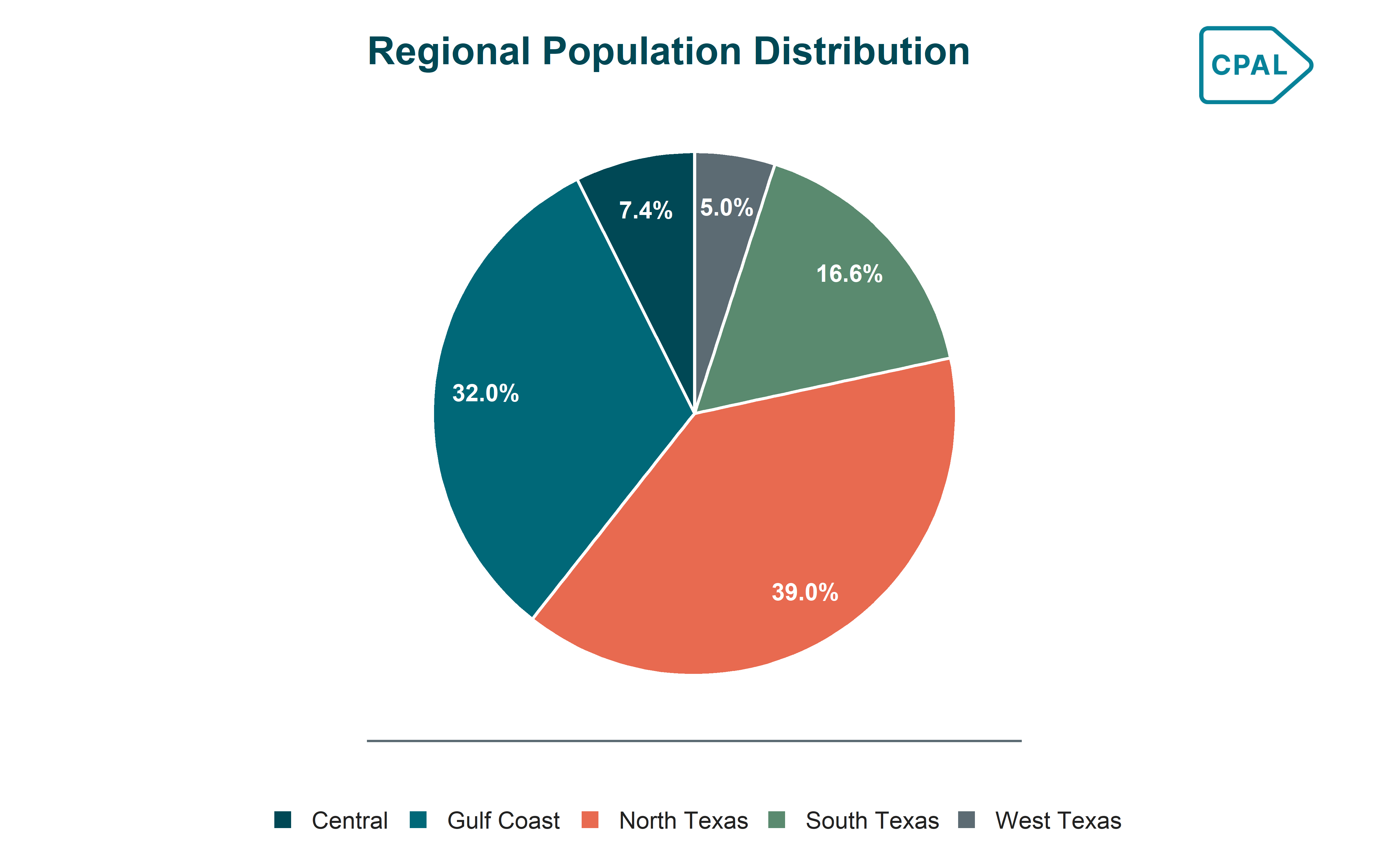
Donut Chart

When to use: Use to show proportions of a whole when you have 2-5 categories.

Show code
region_pop <- tx_counties |>
  group_by(region) |>
  summarise(population = sum(total_pop), .groups = "drop") |>
  mutate(
    pct = population / sum(population),
    label = scales::percent(pct, accuracy = 0.1)
  ) |>
  arrange(desc(region)) |>
  mutate(
    cumsum_pop = cumsum(population),
    pos = cumsum_pop - population / 2
  )

p <- region_pop |>
  ggplot(aes(x = 2, y = population, fill = region)) +
  geom_col(width = 1, color = "white") +
  geom_text(
    aes(y = pos, label = label),
    x = 2.3,
    color = "white",
    fontface = "bold",
    size = 3.5
  ) +
  coord_polar(theta = "y") +
  xlim(0.5, 2.5) +
  scale_fill_cpal_d() +
  scale_x_continuous(labels = NULL, breaks = NULL) +
  scale_y_continuous(labels = NULL, breaks = NULL) +
  labs(
    title = "Regional Population Distribution",
    x = NULL,
    y = NULL,
    fill = NULL
  ) +
  theme_cpal() +
  theme(
    legend.position = "bottom",
    legend.direction = "horizontal"
  )

add_cpal_logo(p)

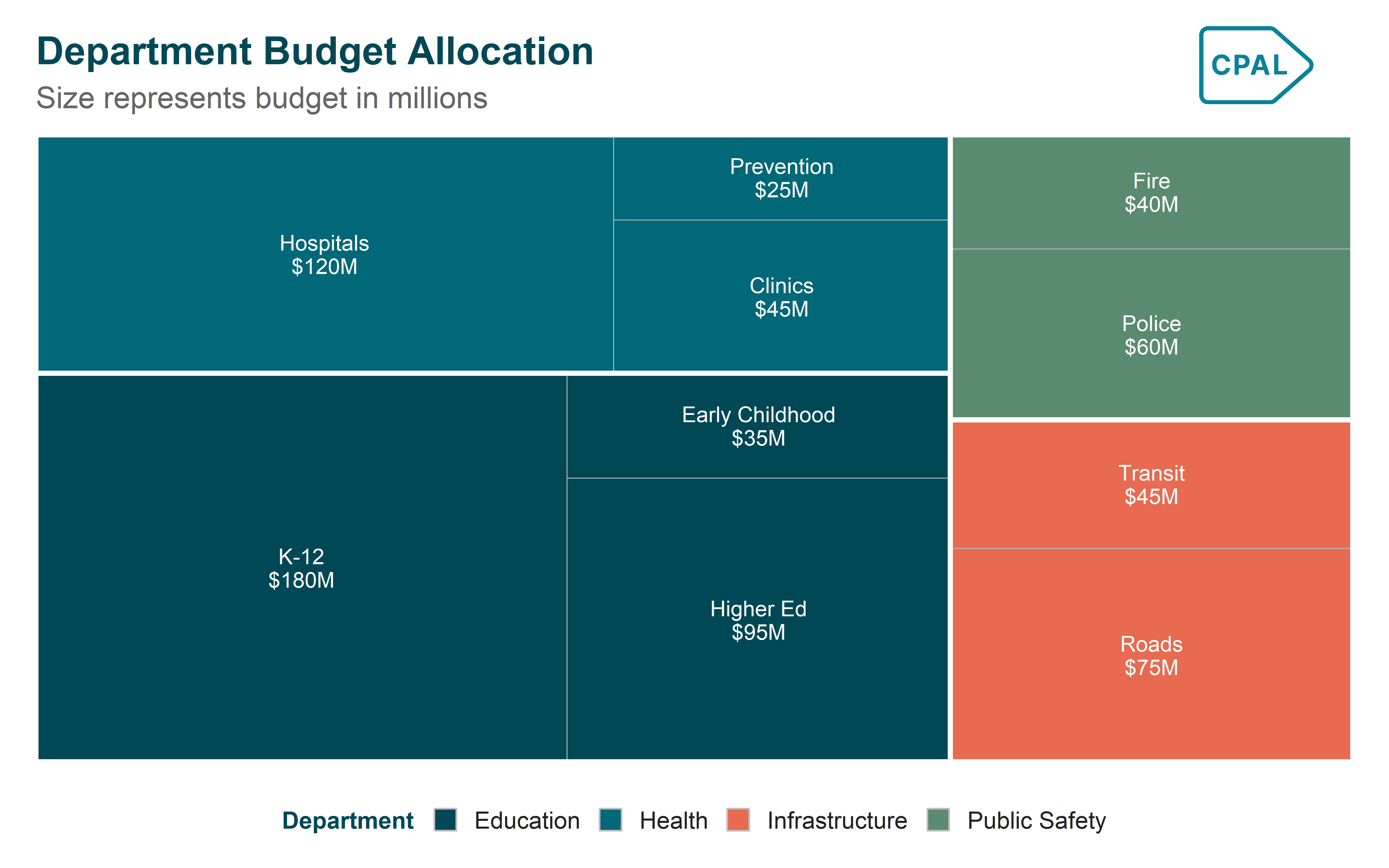
Treemap

When to use: Use to show hierarchical part-to-whole relationships where size represents a quantitative value.

Show code
p <- budget_data |>
  mutate(label = paste0(program, "\n$", budget, "M")) |>
  ggplot(aes(area = budget, fill = department, subgroup = department, label = label)) +
  geom_treemap() +
  geom_treemap_subgroup_border(color = "white", size = 3) +
  geom_treemap_text(color = "white", place = "centre", grow = FALSE, size = 9) +
  scale_fill_cpal_d() +
  labs(
    title = "Department Budget Allocation",
    subtitle = "Size represents budget in millions",
    fill = "Department"
  ) +
  theme_cpal() +
  theme(legend.position = "bottom")

add_cpal_logo(p)


Specialized Charts

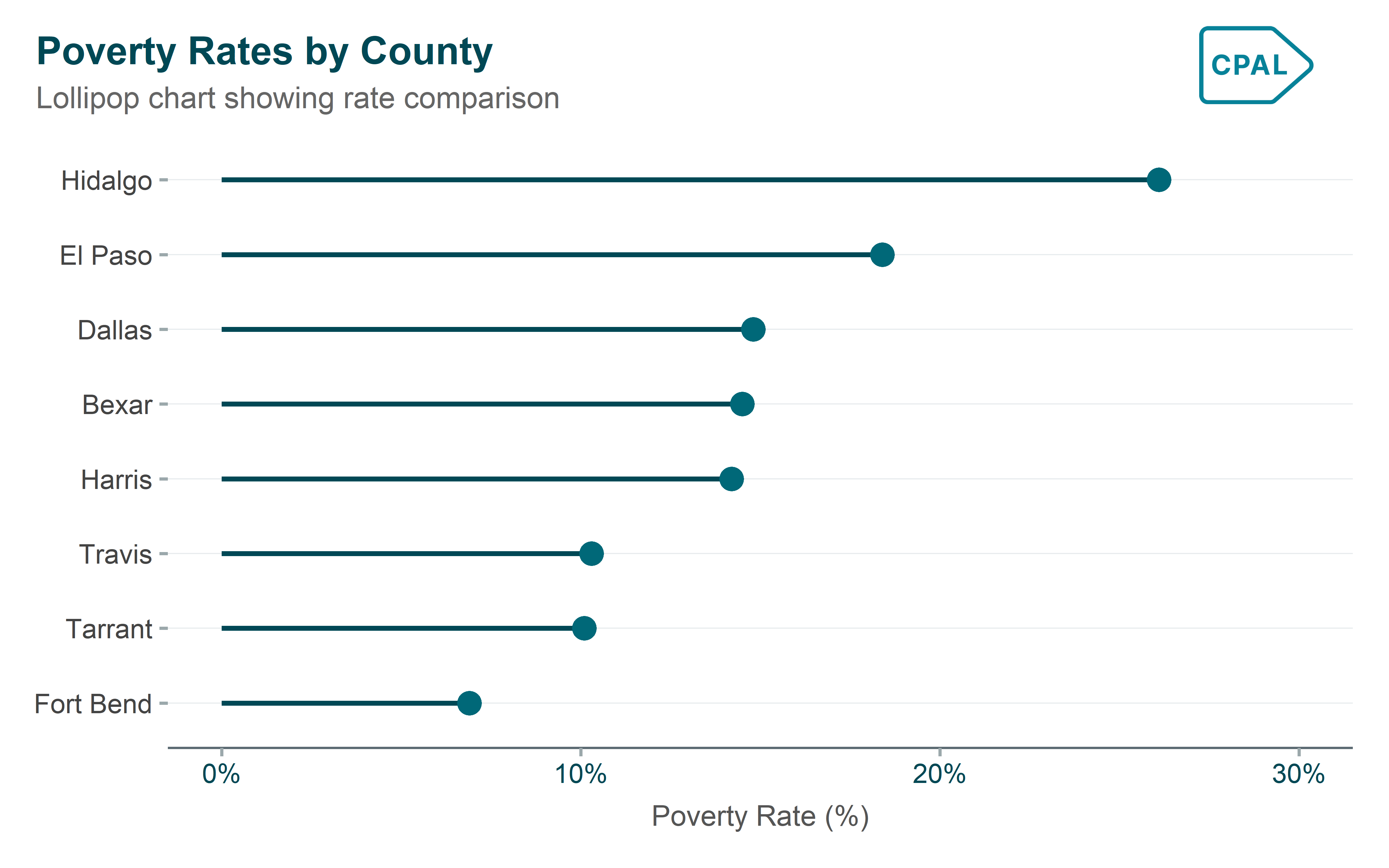
Lollipop Chart

When to use: Use as a cleaner alternative to bar charts when you have many categories.

Show code
p <- tx_counties |>
  arrange(desc(poverty_rate)) |>
  head(8) |>
  ggplot(aes(x = reorder(county, poverty_rate), y = poverty_rate)) +
  geom_segment(
    aes(xend = county, y = 0, yend = poverty_rate),
    color = palette_cpal_main[1],
    linewidth = 1
  ) +
  geom_point(color = palette_cpal_main[2], size = 4) +
  coord_flip() +
  scale_y_continuous(labels = scales::label_percent(scale = 1), limits = c(0, 30)) +
  labs(
    title = "Poverty Rates by County",
    subtitle = "Lollipop chart showing rate comparison",
    x = NULL,
    y = "Poverty Rate (%)"
  ) +
  theme_cpal()

add_cpal_logo(p)

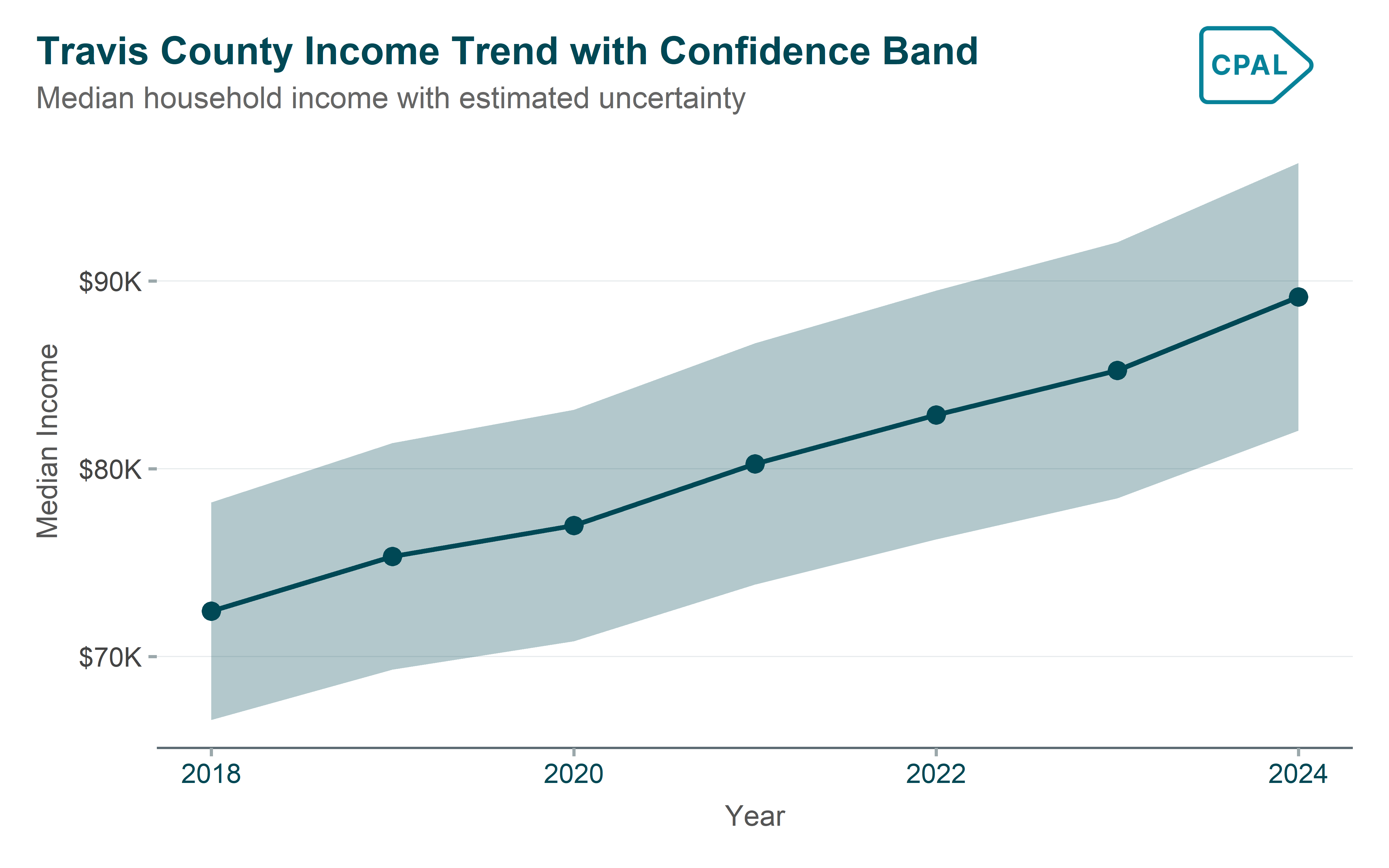
Ribbon/Range Chart

When to use: Use when presenting estimates that have uncertainty.

Show code
range_data <- tx_time |>
  filter(county == "Travis") |>
  mutate(
    lower = median_hh_income * 0.92,
    upper = median_hh_income * 1.08
  )

p <- range_data |>
  ggplot(aes(x = year)) +
  geom_ribbon(aes(ymin = lower, ymax = upper), fill = palette_cpal_main[1], alpha = 0.3) +
  geom_line(aes(y = median_hh_income), color = palette_cpal_main[1], linewidth = 1) +
  geom_point(aes(y = median_hh_income), color = palette_cpal_main[1], size = 3) +
  scale_y_continuous(labels = scales::label_dollar(scale = 1e-3, suffix = "K")) +
  labs(
    title = "Travis County Income Trend with Confidence Band",
    subtitle = "Median household income with estimated uncertainty",
    x = "Year",
    y = "Median Income"
  ) +
  theme_cpal()

add_cpal_logo(p)


Faceted Charts

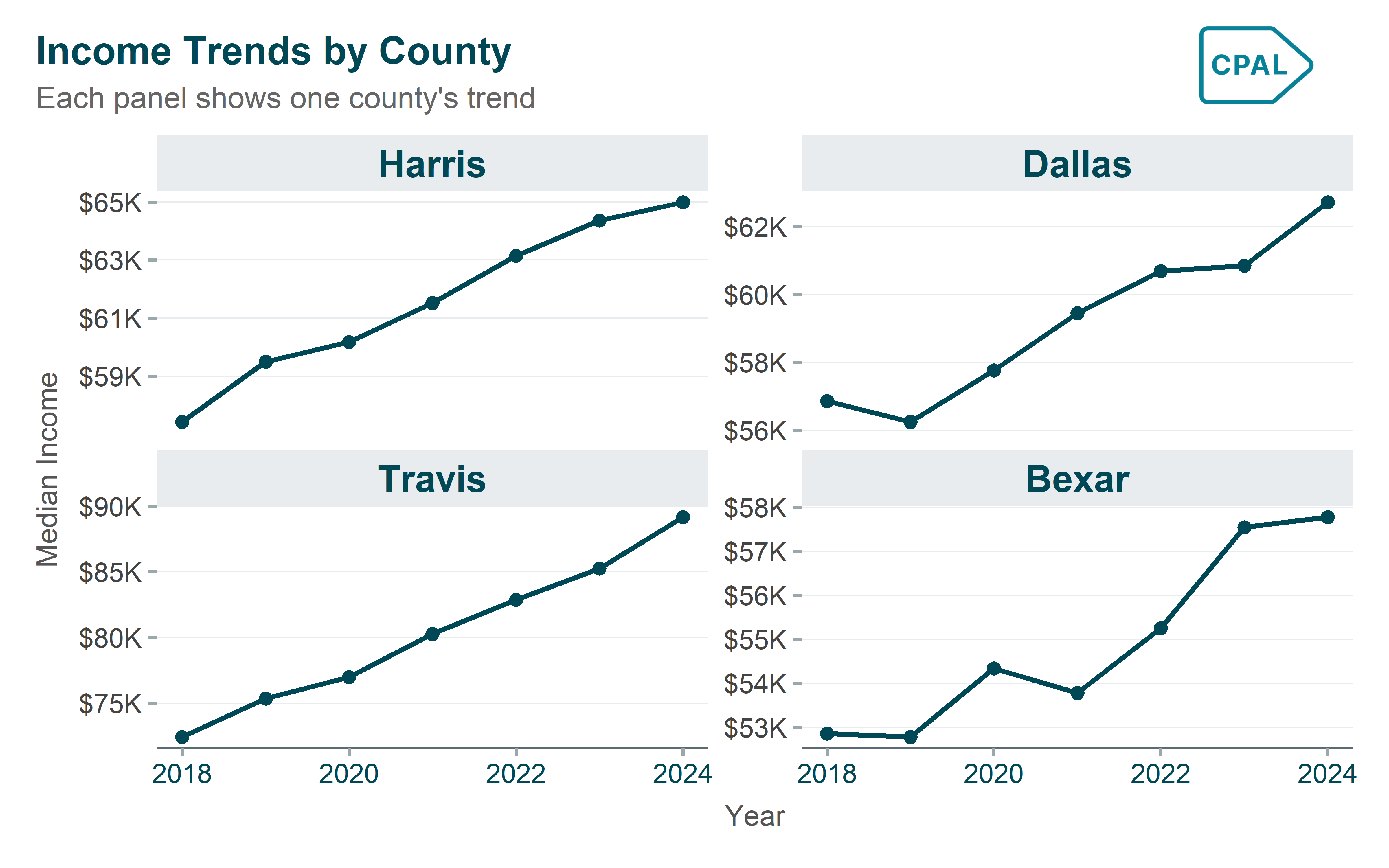
Facet Wrap (Small Multiples)

When to use: Use to create multiple panels of the same chart type, each showing a subset of the data.

Show code
p <- tx_time |>
  ggplot(aes(x = year, y = median_hh_income)) +
  geom_line(color = palette_cpal_main[1], linewidth = 1) +
  geom_point(color = palette_cpal_main[1], size = 2) +
  facet_wrap(~county, scales = "free_y") +
  scale_y_continuous(labels = scales::label_dollar(scale = 1e-3, suffix = "K")) +
  labs(
    title = "Income Trends by County",
    subtitle = "Each panel shows one county's trend",
    x = "Year",
    y = "Median Income"
  ) +
  theme_cpal()

add_cpal_logo(p)


Quick Reference

Function Purpose
theme_cpal() Apply CPAL theme (light mode)
theme_cpal_dark() Apply CPAL theme (dark mode)
add_cpal_logo(p) Add CPAL logo to plot
scale_fill_cpal_d() Discrete/categorical fill colors
scale_color_cpal_d() Discrete/categorical line/point colors
scale_fill_cpal(palette = "...", discrete = FALSE) Continuous gradient fills
cpal_colors() Get categorical palette as vector
cpal_colors("midnight_seq_8") Get sequential palette as vector
cpal_colors("coral_midnight_9") Get diverging palette as vector